Your First Session
This walkthrough picks up where Unity Setup left off. You'll authenticate, start a session, stream video, and watch it from Postman.
Step 1 - Enter Play Mode
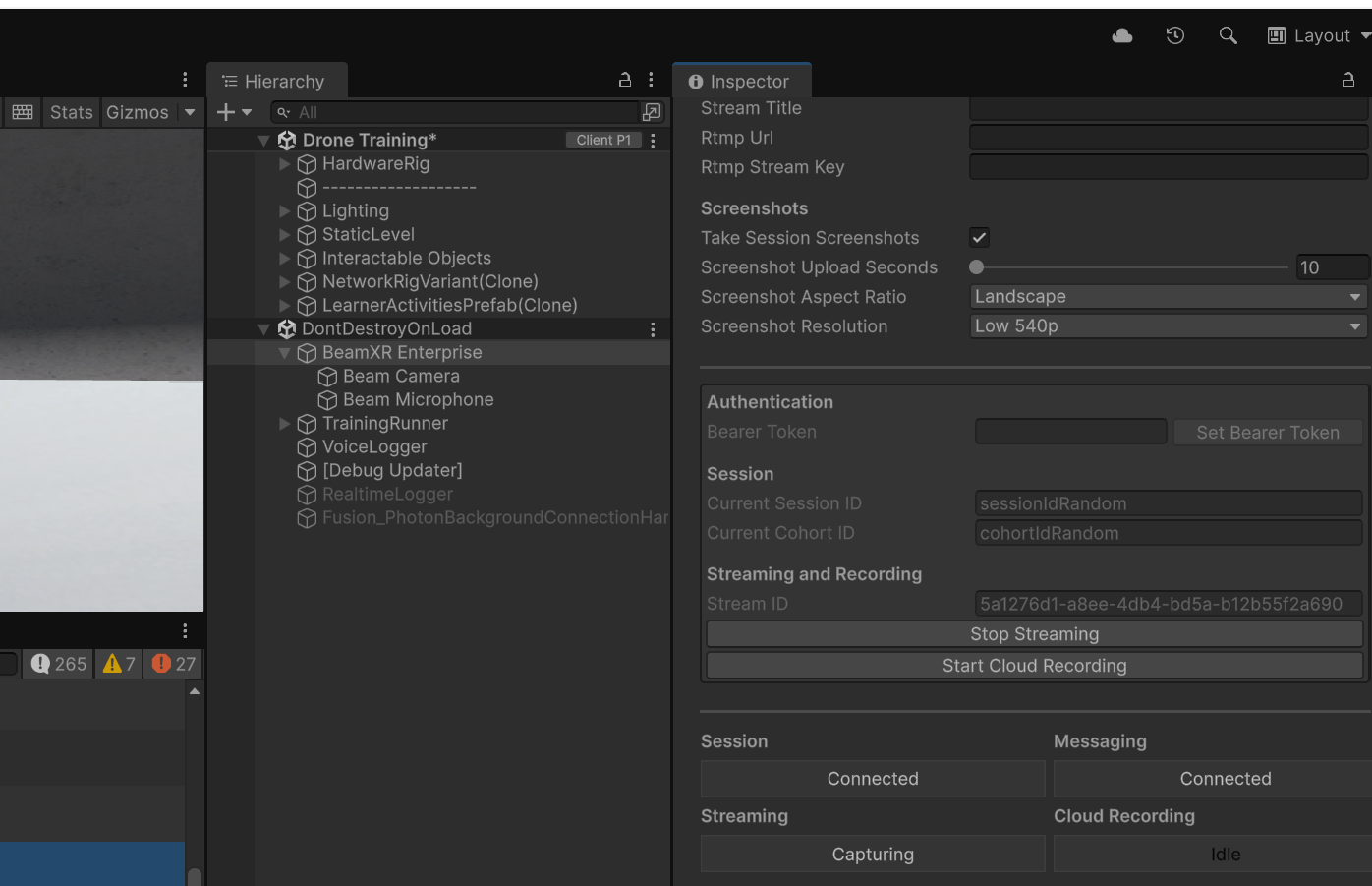
Press Play in the Unity Editor. The Enterprise manager will initialise and you'll see the runtime controls in the Inspector.
Step 2 - Set Your Bearer Token
You need a Pool User Token to authenticate the client. Generate one in Postman - see Authentication.
- In Play Mode, find the Authentication section in the Inspector.
- Paste your token into the Bearer Token field and click Set Bearer Token.
Step 3 - Configure Session and Cohort ID
In the Session section of the Inspector:
- Set a Current Session ID - this must be unique per session and contain only alphanumeric characters (letters and numbers, no spaces or special characters).
- Set a Current Cohort ID - any string you choose to group related sessions (e.g.
class9blesson3,qasprint22).
Session IDs must be unique and alphanumeric only. Reusing a session ID or including special characters will cause errors.
Step 4 - Start the Session
Click the session start button. The status indicators will update:
- Session → Connected
- Messaging → Connected
Step 5 - Start Streaming
Click Start Streaming in the Inspector. You'll see:
- Streaming → Capturing
- A Stream ID will appear
The SDK is now streaming video and sending events (device health, screenshots) to the API automatically.
Step 6 - Get the Session in Postman
Switch to Postman. Make sure you have a valid M2M token, then retrieve your session:
GET /sessions/{SessionId}
The response includes all events for the session. Look for the StreamStarted event - it contains the Streaming Session ID.
{
  "id": "f47ac10b-58cc-4372-a567-0e02b2c3d479",
  "sessionId": "a1b2c3d4-5678-90ab-cdef-1234567890ab",
  "eventType": "StreamStarted",
  "timestamp": 1709049600000,
  "streamingSessionId": "stream-9876-5432-fedc-ba0987654321"
}
Step 7 - Watch the Stream
Using the Streaming Session ID from the previous step:
GET /sessions/{SessionId}/streams/{StreamingSessionId}/Watch
This returns a URL and token. Use these with the example web player to view the live stream.
Example web player code snippet will be provided in a future update.
What's Next?
You now have a working end-to-end flow. From here you can:
- Send commands to the client (camera control, text messages, custom variables)
- Start and stop recordings
- Send custom events timestamped to the video
- Set up webhooks to receive events in real time
- Query sessions and cohorts from your backend